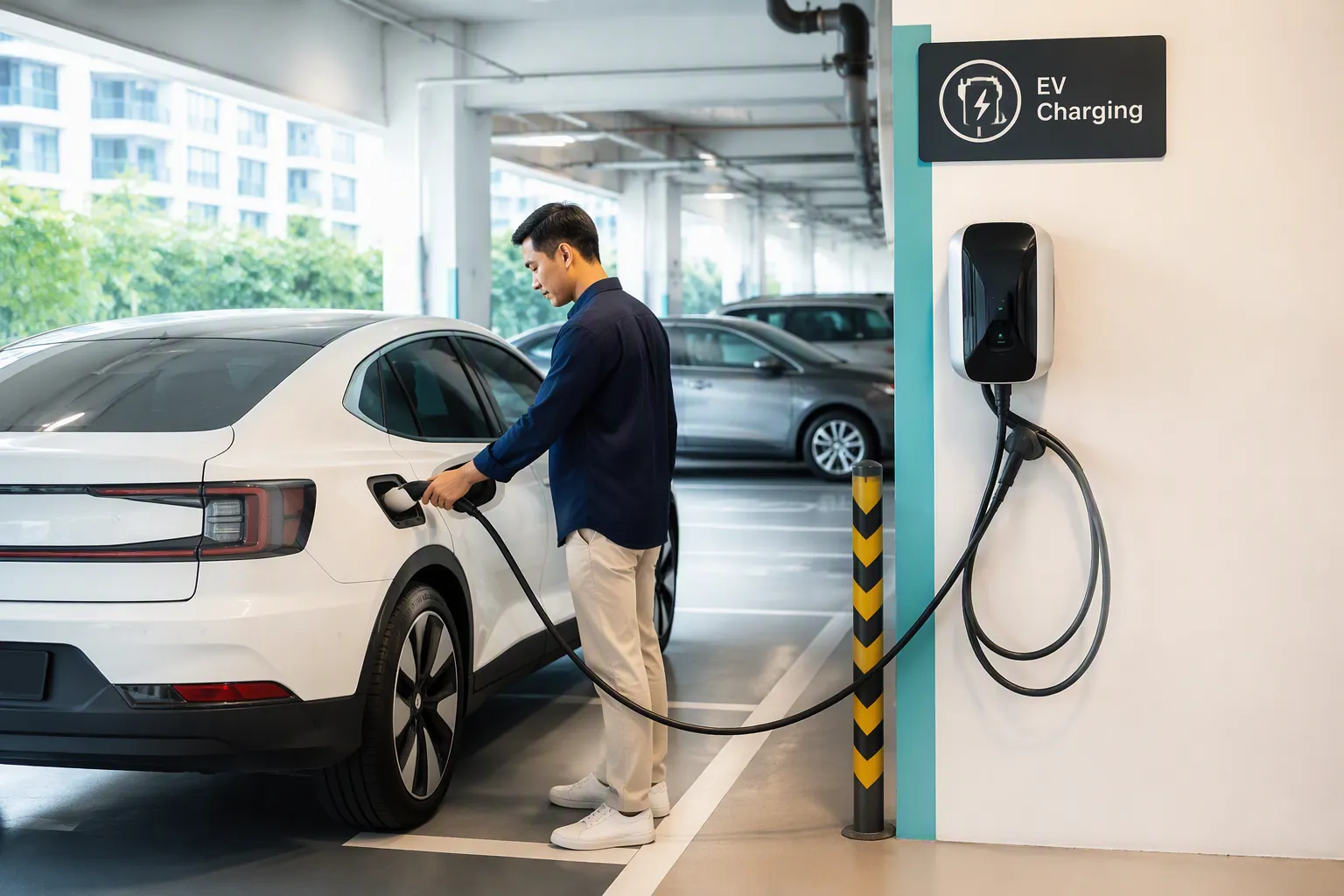


Apple Maps streamlines the process of finding electric vehicle charging points for drivers in 2025. Many EV owners rely on accurate location data to keep their electric vehicle powered. With support for real-time updates, Apple Maps highlights each EV Charger’s status and compatibility. Leading EV charger manufacturers partner with Apple Maps to deliver up-to-date information. Drivers can trust this tool to locate reliable charging stations for any EV.
How to Find Electric Vehicle Charging Points with Apple Maps

Searching for EV Charging Stations
Using Keywords to Find Charging Stations
Drivers rely on Apple Maps to find charging stations quickly and efficiently. The app supports keyword searches, allowing users to enter terms such as “charging station” or “car charge point” in the search bar. This method helps users locate electric car charging stations in their vicinity or along their planned route. Apple Maps displays a list of available options, making it easy for drivers to select the most convenient location.
Tip: Entering specific keywords like “fast charging” or the name of a charging network can help narrow down results and save time.
Apple Maps streamlines the search process with a simple sequence:
- Open Apple Maps on your device.
- Type “charging station” or “car charge point” in the search field.
- Apply filters to sort stations by speed or availability.
- Tap on a station’s name to check plug compatibility with your EV.
This approach ensures that drivers can find charging stations that meet their needs without unnecessary delays.
Locating Electric Car Charging Stations Near You
Apple Maps uses advanced location services to pinpoint nearby electric car charging stations. The app leverages real-time data to show stations within a user’s immediate area. Drivers see charging points on the map, complete with distance and estimated travel time. Apple Maps also highlights stations with available plugs, helping users avoid busy or occupied locations.
Apple Maps updates station availability frequently, especially with enhancements introduced in iOS 17. Users benefit from current information, which reduces the risk of arriving at a full or offline station. The app’s integration with leading charging networks ensures that data remains accurate and reliable.
Viewing Details of EV Charging Stations
Checking Real-Time Availability of Charging Points
Apple Maps provides real-time updates on the status of EV charging stations. Users can view whether a charging point is available, occupied, or out of service. This feature allows drivers to make informed decisions before heading to a station. Apple Maps refreshes availability data regularly, giving users confidence that the information reflects the current situation.
Note: Real-time monitoring helps drivers avoid unnecessary detours and wait times at busy stations.
Reviewing Charging Speed and Plug Compatibility
Apple Maps displays detailed information about each charging station, including charging speed and plug compatibility. Drivers can tap on a station to see which plug types are supported and whether the station offers fast or standard charging options. This information helps users match their EV model with the correct charging infrastructure.
The following table summarizes the key features available for EV charging stations in Apple Maps:
| Feature | Description |
|---|---|
| Charging Wallet | Integrates various payment options, including ad hoc prices and subscriptions. |
| Transparent Pricing | Shows flexible pricing options to help users select the most cost-effective tariff. |
| Real-time Monitoring | Allows users to track the charging process as it happens. |
| Automatic Billing | Simplifies payment for charging sessions. |
| Initial Availability | Available at select stations and networks in certain countries. |
Apple Maps enables drivers to review all relevant details before choosing a charging station. This transparency ensures that users select the best option for their EV and charging needs.
Filtering Electric Car Charging Stations in Apple Maps
Apple Maps offers advanced filtering tools that help drivers find the most suitable electric car charging stations. These filters allow users to narrow down options based on charging speed, network preference, and plug compatibility. By using these features, drivers can save time and ensure their vehicle receives the correct type of charge.
Applying Filters for Charging Speed and Network
Fast Charging vs. Standard Charging Options
Drivers often need to choose between fast charging and standard charging stations. Apple Maps makes this decision easier by providing clear filter options. Users can select fast charging stations when they need a quick boost or opt for standard charging for longer stops. Fast charging stations usually deliver higher power, reducing wait times for busy drivers.
Tip: Fast charging stations work best for drivers on tight schedules or long trips. Standard charging suits overnight stays or extended parking.
Apple Maps displays icons and labels for each charging station, indicating the available charging speeds. This visual information helps users make quick decisions without reading lengthy descriptions.
Selecting Preferred EV Charging Networks
Many drivers prefer specific charging networks due to membership benefits or reliability. Apple Maps allows users to filter stations by network, showing only those that match their preferences. This feature supports popular networks and helps drivers avoid incompatible or unfamiliar providers.
A simple process helps users apply these filters:
- Open the filters menu after searching for charging stations.
- Select the desired charging speed.
- Choose preferred networks from the list.
- View the updated map with filtered results.
This approach ensures that drivers see only the most relevant charging stations for their needs.
Ensuring Plug Compatibility for Your Electric Vehicle
Matching Plug Types to Your EV Model
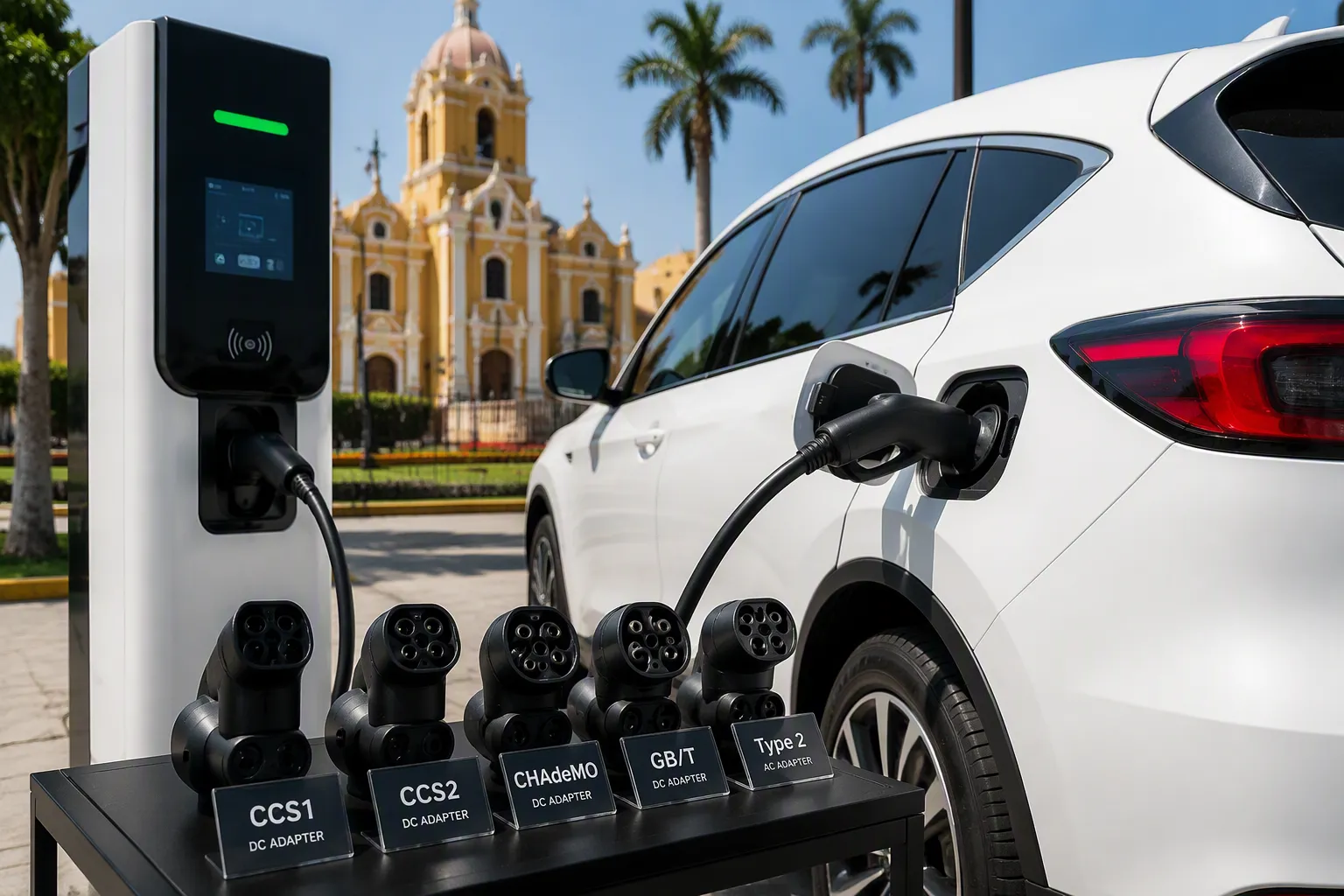
Plug compatibility remains a critical factor for electric vehicle owners. Apple Maps addresses this by allowing users to filter stations based on plug type. Drivers can match the plug type required by their EV model, reducing the risk of arriving at an incompatible station.
A table in Apple Maps lists common plug types and compatible vehicles:
| Plug Type | Common EV Models Supported |
|---|---|
| CCS | Tesla (Europe), BMW, Ford |
| CHAdeMO | Nissan Leaf, Mitsubishi Outlander |
| Type 2 | Renault Zoe, Hyundai Kona |
Drivers can quickly reference this information before selecting a charging station.
Viewing Supported Vehicles at Each Charging Station
Apple Maps provides detailed information about supported vehicles at each charging station. Users can tap on a station to see a list of compatible EV models. This feature helps drivers confirm that their vehicle will work with the selected station.
Note: Always check the supported vehicle list before starting a charging session to avoid inconvenience.
By using these filtering tools, drivers can confidently choose the right charging station for their electric vehicle.
Planning Routes with EV Charging Stations in Apple Maps
Apple Maps has transformed how drivers plan long journeys with electric vehicles. The app now offers advanced EV routing features that help users find the best charging stops along their route. These tools ensure that drivers never run out of power, even on unfamiliar roads.
Enabling EV Routing for Electric Vehicle Charging Points
Setting Up Your EV Profile in Apple Maps
To unlock EV routing, drivers first set up their EV profile in Apple Maps. This process begins by downloading the vehicle manufacturer’s app, such as Tesla, from the App Store. After installing the app, users follow the setup instructions to connect their vehicle to their iOS device. Next, they launch Apple Maps, tap the “i” icon, and select “My Vehicles.” By choosing “Connect Your Electric Vehicles,” drivers link their EV to the app. The system then recognizes the vehicle’s battery range and plug type, which allows Apple Maps to provide accurate charging stops along any route.
Activating EV Routing Features for Charging Stops
Once the EV profile is active, Apple Maps automatically enables EV routing. When drivers request directions, the app monitors the vehicle’s battery level and suggests charging stops only when necessary. The system considers factors like elevation changes and driving speed to optimize the route. This feature helps drivers avoid unnecessary detours and ensures they reach their destination efficiently.
Tip: Apple Maps supports multiple EV models, so users can switch between vehicles and receive tailored charging recommendations for each one.
The benefits of enabling EV routing in Apple Maps become clear during long-distance travel. The following table highlights key advantages:
| Benefit | Description |
|---|---|
| Battery Preconditioning | Helps shorten charging stops in colder weather by preparing the battery for optimal charging. |
| Strategic Route Planning | Connects drivers to the fastest compatible chargers at the right time, optimizing travel time. |
| Charging Station Integration | Provides real-time information on charging stations along the route, essential for long trips. |
Drivers often find that charging can be more critical than driving range on EV road trips. Fast charging requires careful planning to achieve optimal rates. The most efficient charging occurs when the battery is at a low state of charge, around 10%.
Adding Charging Stations to Your Route
Automatic Suggestions for EV Charging Stations
Apple Maps streamlines the process of adding charging stops to a route. After setting up the EV profile, the app automatically suggests compatible charging stations along the way. When drivers enter their destination and request directions, Apple Maps calculates the route and inserts charging stops where needed. The app updates these suggestions in real time, reflecting current station availability and traffic conditions.
Manually Adding Electric Car Charging Points Along Your Trip
Some drivers prefer to customize their route by manually adding charging stops. Apple Maps allows users to select specific charging stations and add them to their directions. This flexibility helps drivers plan breaks at preferred locations or take advantage of amenities at certain stations.
To manually add charging points, users follow these steps:
- Open Apple Maps and enter the destination.
- Review the suggested route and charging stops.
- Tap on the map to view nearby charging stations.
- Select a station and choose “Add Stop” to include it in the route.
- Repeat as needed to customize the trip.
Once the route is set, Apple Maps continues to monitor the vehicle’s battery and provides updated directions if conditions change. This approach gives drivers confidence and control over their EV journeys.
Real-Time Information for EV Charging Stations in Apple Maps
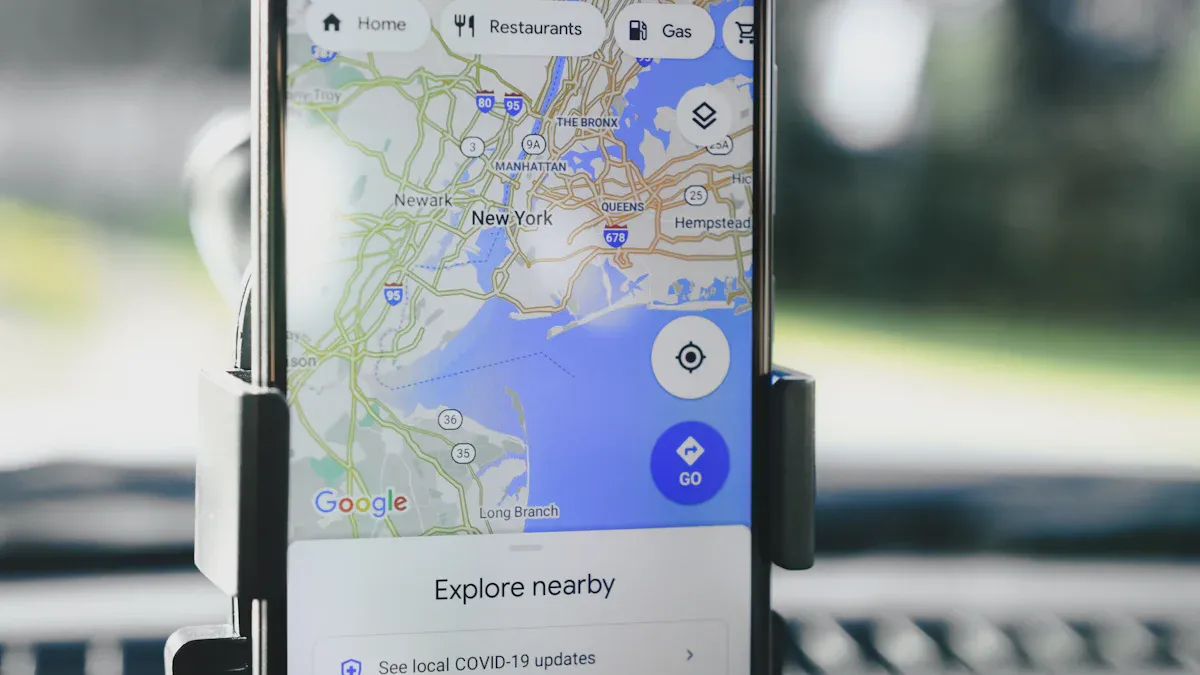
Checking Live Status of Electric Vehicle Charging Points
Viewing Real-Time Availability and Occupancy
Apple Maps delivers up-to-date information about the availability of EV charging stations. Drivers can see which charging station has open spots and which ones are currently occupied. This real-time data helps users avoid unnecessary stops at full locations. The app updates availability frequently, so drivers can plan their trips with confidence.
- Pilgrim Beart, cofounder and CEO of DevicePilot, highlights the importance of monitoring charging station performance. He notes that station owners must track their chargers to ensure proper function. Without this oversight, the reliability of electric vehicle charging points drops, which can discourage potential EV users.
Apple Maps works with leading networks to provide reliable live status data. Drivers benefit from this partnership because they receive accurate information about charging station occupancy. This transparency supports a smooth charging experience.
Monitoring Charging Station Conditions and Amenities
Apple Maps also provides details about the condition of each charging station. Users can check if a station is operational before arrival. The app may display alerts if a station is out of service or undergoing maintenance. This feature reduces the risk of wasted trips.
Amenities at charging stations appear in the station details. Drivers can see if a location offers restrooms, food options, or Wi-Fi. These details help users choose the best stop for their needs. A well-equipped charging station can make a long journey more comfortable.
Getting Updates and Reviews for Charging Stations
Reading User Ratings and Feedback
Apple Maps includes user ratings for many EV charging stations. Drivers can read feedback from others who have visited a location. These reviews often mention the cleanliness, safety, and speed of the charging process. Ratings help users identify reliable stations and avoid those with frequent issues.
Note: User feedback can highlight problems that real-time data might miss, such as broken equipment or poor lighting.
Accessing Photos and Additional Station Information
Photos of charging stations appear in Apple Maps to give drivers a visual reference. Users can view images of the site layout, parking spaces, and nearby amenities. The app also provides extra details, such as payment methods and supported vehicle types. This information helps drivers prepare for their visit and ensures compatibility with their EV.
Apple Maps continues to expand its database of station information. As more drivers contribute photos and updates, the app becomes an even more valuable tool for EV owners.
Tips for Reliable EV Charging Using Apple Maps
Saving Favorite EV Charging Stations
Adding Electric Car Charging Points to Favorites
Frequent EV drivers benefit from saving their preferred charging stations in Apple Maps. This feature allows users to quickly access locations they trust, reducing the time spent searching during each trip. By marking a station as a favorite, drivers can view essential details such as operational hours, pricing, and payment options at a glance. The process involves tapping the station’s information card and selecting the “Add to Favorites” option. This action places the station in a dedicated list for easy retrieval.
The following table outlines the advantages of saving favorite charging stations:
| Feature | Benefit for EV Users |
|---|---|
| Easy navigation | Users can find and navigate to charging stations easily. |
| Operational hours | Users can view the hours of operation for each station. |
| Pricing details | Users can access pricing information directly. |
| Start charging process | Users can initiate charging through the app. |
| Payment processing | Users can make payments via the ChargePoint app linked. |
Drivers who save their favorite stations experience smoother journeys and fewer interruptions. They also gain confidence knowing that reliable charging options remain just a tap away.
Setting Up Notifications for Charging Station Availability
Apple Maps enables users to set up notifications for their favorite EV charging stations. This feature alerts drivers when a station becomes available or when a plug type matches their vehicle. To activate notifications, users open the station’s details and select the notification bell icon. Apple Maps then sends real-time updates, helping drivers avoid busy periods and plan their stops more efficiently.
Tip: Timely notifications can help drivers secure a spot at popular charging stations during peak travel hours.
Using Siri and Voice Commands to Find Charging Stations
Asking Siri to Locate EV Charging Points
Siri integration with Apple Maps provides a hands-free solution for locating EV charging stations. Drivers can activate Siri and say, “Find nearby EV charging stations,” or specify a network or plug type. Apple Maps responds with real-time information, displaying available stations filtered by compatibility and network preference. This voice-activated approach enhances safety by allowing drivers to keep their focus on the road.
Apple Maps now offers real-time data on charging availability, which improves the accuracy of Siri’s recommendations. Drivers receive up-to-date results that reflect current station status and plug compatibility.
Navigating Hands-Free to Electric Vehicle Charging Stations
Siri also supports hands-free navigation to selected charging stations. After choosing a location, drivers can instruct Siri to start navigation. The system provides turn-by-turn directions, factoring in traffic and charger availability. This seamless integration ensures that drivers reach their destination efficiently without manual input.
Apple Maps can plan routes that include charging stops based on charger availability and driving conditions. This capability significantly improves the accuracy and reliability of finding nearby EV charging points, especially during long journeys.
Note: Voice commands reduce distractions and support safer driving practices for all EV owners.
Alternative Ways to Find Charging Stations in Apple Maps
Exploring Nearby EV Charging Points on the Map
Using Map Layers and Views for Charging Stations
Apple Maps offers interactive map layers that help users visualize charging station locations. By zooming in or out, drivers can see charging points appear as icons on the map. These icons often display real-time status, such as availability or charging speed. Users can switch between standard, satellite, and hybrid views to gain a better understanding of the area. This flexibility allows drivers to plan stops based on nearby amenities or road conditions.
Tip: Satellite view can help drivers identify parking entrances and station layouts before arrival.
Identifying Clusters of Electric Car Charging Points
Clusters of charging stations often appear in urban centers, shopping districts, or along major highways. Apple Maps highlights these clusters, making it easier for drivers to find multiple options in one area. When users tap on a cluster, the map expands to show individual charging points. This feature helps drivers compare station amenities, charging speeds, and plug compatibility without switching screens.
A cluster view also assists drivers during peak travel times. If one station is busy, another nearby option may be available. This approach reduces wait times and increases charging reliability.
Integrating Third-Party EV Charging Apps with Apple Maps
Linking Charging Network Accounts for More Options
Many drivers use third-party apps to expand their charging options beyond what Apple Maps displays by default. Apps like ChargeHub, Chargeway, and Open Charge Map offer advanced search features, customizable notifications, and user-submitted ratings. By linking accounts from networks such as EVgo or Electrify America, drivers unlock real-time updates on station availability and payment options. This integration provides a seamless experience, allowing users to manage memberships and payments directly from their preferred app.
- ChargeHub lists all charging stations in the US and Canada, supporting advanced searches.
- Chargeway uses a color-coded system to identify connector types and charging speeds.
- Open Charge Map enables users to submit new stations, ratings, and photos.
Note: Individual charging network apps often provide exclusive promotions or loyalty rewards for members.
Syncing Charging Data with Apple Maps
Some third-party apps now support syncing charging data with Apple Maps. When users connect their accounts, charging sessions and station preferences appear within the Apple Maps interface. This synchronization streamlines trip planning and ensures that drivers always have access to their favorite stations. A Better Route Planner, for example, creates detailed itineraries with suggested charging stops based on vehicle type and destination. Drivers can export these routes to Apple Maps for turn-by-turn navigation.
By combining the strengths of Apple Maps and third-party apps, drivers gain access to a broader network of charging stations and more personalized recommendations.
Troubleshooting Issues with EV Charging Stations in Apple Maps
Electric vehicle drivers sometimes encounter challenges when using Apple Maps to locate charging stations. These issues can disrupt trip planning and create frustration, especially during long journeys. Understanding common problems and knowing how to resolve them ensures a smoother experience for every EV owner.
Resolving Location and Search Problems for Charging Points
Updating Apple Maps for Latest EV Features
Apple regularly updates its mapping platform to enhance the EV charging experience. Users who notice missing or outdated charging stations should first check for the latest software updates. Keeping Apple Maps current ensures access to new features, improved station data, and better integration with EV routing. Updated versions often address previous limitations, such as the visibility of charging stations compared to gas stations.
Many users report that search results sometimes include irrelevant locations or fail to display charging stations along a planned route. Updating the app can resolve these inconsistencies. When the latest version is installed, Apple Maps provides more accurate search results and displays charging points more clearly.
Checking Location Services and Permissions
Accurate location data is essential for finding nearby charging stations. Users should verify that location services are enabled for Apple Maps. Without proper permissions, the app may not display relevant charging points or may show stations far from the user’s actual position.
Common issues include:
- Charging stations not appearing in the route planner, making trip planning more difficult.
- Confusion about the visibility of charging stations versus gas stations.
- Search results that include unrelated options, which detracts from the user experience.
To improve results, users can:
- Search directly for charging stations within Apple Maps.
- Use Siri to locate nearby charge points.
- Type “Charge station” in the search bar for targeted results.
- Manually select green icons on the map to route to specific stations.
- Provide feedback to Apple to help refine the service.
Tip: Enabling EV routing, if supported by the vehicle, allows Apple Maps to automatically add charging stops to journeys.
Addressing Compatibility and Routing Errors for EV Charging
Verifying Your EV Profile Information
Incorrect or incomplete EV profile information can lead to compatibility and routing errors. Users should review their vehicle details in Apple Maps, ensuring the correct model, battery range, and plug type are entered. Accurate profiles help the app suggest compatible charging stations and optimize routes based on the EV’s capabilities.
If Apple Maps fails to recommend appropriate charging stops, updating the EV profile often resolves the issue. Drivers should also confirm that their vehicle’s manufacturer app is properly linked to Apple Maps for seamless integration.
Contacting Apple Support for Charging Station Help
Persistent problems may require assistance from Apple Support. Users experiencing repeated errors, missing stations, or routing failures can contact support through the app or Apple’s website. Support specialists can troubleshoot issues, provide guidance on settings, and escalate unresolved problems to technical teams.
A table summarizes troubleshooting steps:
| Problem | Solution |
|---|---|
| Charging stations missing from search | Update Apple Maps, check location settings |
| Inaccurate routing or compatibility errors | Verify EV profile, relink manufacturer app |
| Persistent technical issues | Contact Apple Support for further assistance |
By following these steps, EV drivers can resolve most issues and enjoy a reliable charging experience with Apple Maps.
- Drivers rely on electric vehicle charging points to maintain their journeys with confidence.
- Apple Maps offers advanced tools for locating electric vehicle charging points, ensuring every trip remains efficient.
- Travelers can use search, filtering, and EV routing features to find electric vehicle charging points that match their needs.
Following these steps helps every driver enjoy smooth and stress-free travel.
FAQ
How does Apple Maps help drivers avoid range anxiety?
Apple Maps displays real-time charging station locations and availability. Drivers see compatible stations along their route, which reduces range anxiety and supports confident trip planning.
Can Apple Maps show charging station availability before arrival?
Apple Maps provides live updates on charging station occupancy. Drivers check station status before arrival, which helps them avoid busy or offline locations.
Is it possible to filter charging stations by plug type in Apple Maps?
Drivers use Apple Maps filters to select charging stations by plug type. The app matches plug compatibility with the driver’s EV model, which ensures a successful charging session.
Does Apple Maps support EV routing for all electric vehicles?
Apple Maps supports EV routing for most major electric vehicle brands. Drivers connect their vehicle profile to the app, which enables tailored charging recommendations and route planning.
How can drivers save favorite charging stations in Apple Maps?
Drivers tap the station’s information card and select “Add to Favorites.” Apple Maps stores these stations for quick access, which streamlines future charging stops.
Can Siri help drivers find nearby EV charging stations?
Siri integrates with Apple Maps to locate nearby EV charging stations. Drivers use voice commands for hands-free searching and navigation, which improves safety and convenience.
What should drivers do if charging stations do not appear in Apple Maps?
Drivers update Apple Maps to the latest version and check location services. If problems persist, they verify EV profile information or contact Apple Support for assistance.
Tip: Regular updates and accurate vehicle profiles improve charging station visibility in Apple Maps.